improving a website’s performance – part 2

A while back (i.e. more than a year ago! yeah I kept myself busy) I wrote the first part of this post, improving a website’s performance – part 1. A few tricks and tips which I’ve learnt over the years which improve a website’s performance, and in return giving the end user a better web experience. A better web experience increases and attracts traffic, and if your website generates money then that translates to profit *cha-ching*.

In the first part of this article the focus was on minification of resources, minimising HTTP requests and optimisation of images. In this post we will be looking at implementation of caching, server side improvements and useful performance tools.

Implement Caching

Latest web browsers can, and probably will, cache a website’s external files, such as CSS, JS and images. As a developer, enabling HTTP caching, will allow these files to be stored on the user’s machine after they are initially downloaded when the user visits the website for the first time. Once stored they will be used again whenever the user re-visits the website instead of re-downloading again. This is quite effective because it will improve the loading and response of the website. Think about it from this point of view, every time you’re hitting that “Back” button most of the data that is already downloaded will be fetched from the storage of your machine instead of getting packets of data from the web. One needs to be careful not to overload this feature though. Any content that features data or information that can change often must not be cached or else the user might end up reading expired information. This can be avoided by having shorter HTTP caching expiry dates to force the web browser to fetch the latest information. A good trick to make sure that the web browser is requesting the latest files from the server and not from the user’s storage is to change the file name.

Server Side Improvements

Improving a website’s performance does not necessarily mean tweaking some stuff from client side but also optimising processes from server side. Do review your code and don’t be afraid to make changes to your source code if a bottle neck is found. These optimisations will reflect on the website’s response and page load times. Tighten loops when possible by moving unnecessary logic. If a loop, that has a lot of iterations, has achieved the result after just a few iterations, then exit that loop and move on to the next process. Again, say a database connection, or even authentication calls, are being declared and populated inside the loop, then, do yourself a favour and make database calls outside of the loop to minimise the amount of calls being done. Other ways to write efficient code is to declare variable types if the data type is known. Avoid any unnecessary variable conversions and once the processing is complete set the variables which aren’t going to be used again to null, particularly if the variables’ type are of complex types and hold large amounts of data. Lastly, before writing the code, analyse the flows and consider implementing appropriate design. You would be surprised what a difference it makes in the long run to actually sit down and design the logic on a piece of paper before implementing it on your computer.

Performance Tools

To test the improvements or simply just to get an idea of the current rating of your website there are a few tools you can make use of. These tools analyse websites and grade features which are related to the website’s performance such as, minification of resources, the amount of HTTP request and image sizes being loaded, in other words the implementations that we have been discussing above and in the previous blog post. On top of that they check the website’s response time from different geographical locations and different web browsers, some of them also checking for mobile responsiveness. There is quite a selection of different tools you can use, some of them are online tools which test and produce their results via their website whereas others have to be downloaded and installed on your computer or web browser. Some of the most popular are Pingdom, KeyCDN, Website Speed Test and GTmetrix, the last two being completely free to use. Worth mentioning is that GTmetrix makes use of Yahoo’s YSlow and Google’s PageSpeed, two reliable tools that perform the same job however GTmetrix takes both results, compares them and produces the final rating.

Developing a website which looks nice and attractive is quite important if you would like to have a constant figure of visitors, because at the end of the day design is considered as a huge factor in web development. However, having said that, it is important to give the visitor a website that has a quick response time and an overall better user experience. When developing a website, it is important to keep in mind that the website should be running smoothly and implementing the features we have discussed would surely help to achieve this result.

basic implementation of AWS SNS topic using c#

Cloud computing, or simply the cloud, has been quite the buzz word in recent years together with cloud service providers like Microsoft Azure, Google Cloud Platform and also – drum roll please – Amazon Web Services, also known as AWS. AWS has been around more than you think, since 2006 if we had to be exact, and in the developers vocabulary it’s really starting to become trendier.

One of the features AWS offers is Simple Notification Service (SNS). The idea behind it is a notification system to push new notifications to all users, or devices, subscribed to it. An SNS Topic is what users subscribe to and is the channel that will enable us to get in touch with them. In this blog post, however, we are going to assume that a topic has already been created and that we know the value of its ARN.

Now let’s focus on how we can send a request to that topic to trigger a new push notification. First thing we need to do is download and install two NuGet packages in our Visual Studio solution.

  • AWSSDK.Core
  • AWSSDK.SimpleNotificationService

Create a new C# class and paste the following code.


using Amazon;
using Amazon.Runtime;
using Amazon.SimpleNotificationService;
using Amazon.SimpleNotificationService.Model;
using System.Net;
class SnsEvents
{
const string AccessKey = "ABCDEFGHIJKLMNOPQRST";
const string SecretKey = "AbcdeFghiJKlmopqrS39VwXY0Za/1cdEF5I9aC";
const string SnsArn = "arn:aws:sns:eu-west-1:004673491943:TheNameOfTheSnsTopic";
static readonly RegionEndpoint Region = RegionEndpoint.EUWest1; //Same region as the ARN above
private static bool publishSnsRequest(string _message)
{
bool success = false;
AWSCredentials credentials;
credentials = new BasicAWSCredentials(AccessKey, SecretKey);
var client = new AmazonSimpleNotificationServiceClient(credentials, Region);
var request = new PublishRequest(SnsArn, _message);
var response = new PublishResponse();
response = client.Publish(request);
string requestId = response.ResponseMetadata.RequestId;
if (response.HttpStatusCode == HttpStatusCode.OK) {
success = true;
}
return success;
}
}

view raw

awssnstopic.cs

hosted with ❤ by GitHub

Analysing the code we can see that I declared four constant variables which will be used to connect to the SNS Topic. The values of these variables should be provided to you by the person maintaining the SNS. Also, notice the value of the region variable. Same region as specified in SNS’s ARN. Then, using the AWSCredentials object, we create a new credentials instance by supplying the access and secret key in the constructor’s parameters. A new AWS SNS client instance is created and the message that we want to send is published. Afterwards we check the response to make sure that our request was processed successfully.

A quick and straight forward post with a basic implementation of how to publish an SNS Topic from a .NET solution. There are much more options one can implement but this should be enough to get you started.

Until next post,
Bjorn

allow CORS on azure api management

It’s been months since I wrote something on this blog, and I do apologise for that, however I have to admit that I’ve been very busy. I moved countries and the build up to that, the actual moving, and the aftermath kept me occupied for quite a while.

Anyways back to business. The past three or four months I have been using Microsoft Azure’s services, mainly the Function Apps and the API Management (APIM). It has been quite a learning curve as I had never worked with cloud services before, or at least not to this extent. Just like every piece of technology it has its pros and cons, and I will probably cover this in another post, however overall I would say that my experience has been quite positive so far.

On this project I was implemented Function Apps to be used as a web API. The Function Apps were connected to the APIM for better maintainability. Through the APIM I could publish different versions of the API, have several duplicates of the same API but each would hit a different environment, manage my OpenAPI specification and add inbound or outbound policies according to my needs.

One issue I came across though was allowing cross-origin requests (also known as CORS) for the API I was working on. What is CORS though? Cross-origin resource sharing (CORS) is a request for a resource (data, web page, image, file) outside the origin. In other words a server requesting resources from another server. In most cases GET requests are allowed however requests of type POST, PUT or DELETE would be denied to minimise potential malicious behaviour. That is exactly what was happening in my case, trying to consume the API I was hosting on the APIM (Microsoft Azure) from client-side (POST AJAX request).

One way to handle this was to add the CORS policy in the Inbound processing section within APIM. More specifically you can add the CORS policy to a specific operation as I did in the screenshot below.

CORS1

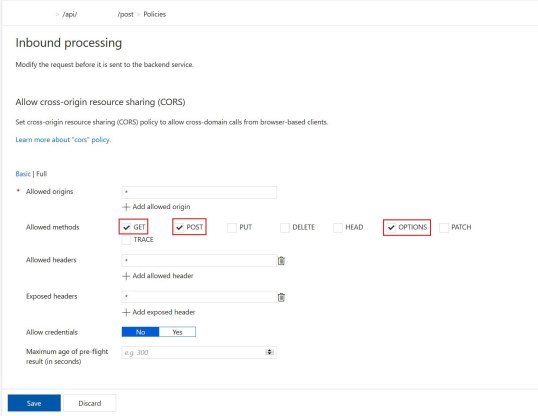
After clicking the Add policy button select Allow cross-origin resource sharing (CORS) and you should get to the screen seen below.

CORS2

In my case I selected the GET, POST and also OPTIONS because cross-domain AJAX request perform a so called CORS Preflight Check. This is done by modern web browser to determine whether the browser has permission to perform that action. This preflight check is an HTTP call of type OPTIONS. In my case I did not restrict anything in the origin and headers field and left the asterisk value which represents a wildcard. Furthermore you can edit the Inbound processing manually using the APIM’s editor. Here’s how it should look like after applying the changes listed above.


<policies>
<inbound>
<base />
<cors>
<allowed-origins>
<origin>*</origin>
</allowed-origins>
<allowed-methods>
<method>GET</method>
<method>POST</method>
<method>OPTIONS</method>
</allowed-methods>
<allowed-headers>
<header>*</header>
</allowed-headers>
<expose-headers>
<header>*</header>
</expose-headers>
</cors>
</inbound>
<backend>
<base />
</backend>
<outbound>
<base />
</outbound>
<on-error>
<base />
</on-error>
</policies>

There are other ways to allow CORS for APIs hosted on Microsoft Azure. I found this method to be the easiest and most straight-forward for APIs that make use of APIM. That’s all for this post and I hope I would not take as long to post my next one.

Bjorn

debugging php with visual studio code

Besides managing this blog I also manage my rugby club’s website, Falcons RFC, a collection web pages with a basic understanding of the club’s news, sections and fixtures. A newer version of the website was developed using WordPress and was launched just this month. The vast amount of plugins and themes available for WordPress users makes developing a new website fairly easier especially if the only time available is late at night after a whole day of work and training. Having said that, there’s always that little bit of customisation that needs to be done and most of the time you have to get hands on, open a text editor and have a look at the code.

As it’s commonly known WordPress relies heavily on PHP and to be honest with you the last time I coded in PHP was some 5 years ago back in my university days and thus my PHP is a bit rusty. This means that I needed a good IDE/text editor that is capable of debugging PHP. After a quick Google research, my conclusion left me with three options; a proper PHP IDE such as PhpStorm, a text editor that supports debugging (possibly with the help of an extension), or a web browser’s extension that focuses mainly on debugging PHP such as FirePHP. I decided to go with the second option and as the title of this blog post suggests the text editor I work with is Visual Studio Code.

I haven’t used Visual Studio Code extensively but I do like the feel of this piece of software. There are loads of extensions (to make you more productive or to customise the interface), quite a strong community and it performs well too! I found this extension, PHP Debug, that at first glance looks like it can help me debug my PHP code. PHP Debug relies on XDebug, a PHP extension, in order to get the debugging up an running.

First thing you want to do, assuming you have a local web server running and PHP installed on it (in my case I have XAMPP), is create a PHP file (name it info.php for instance) and place it in the root of your local web server. Paste the following code in this PHP file and access it from your web browser by writing localhost/info.php in the address bar.


<?php
phpinfo();
?>

The output should be a list of current PHP versions, configurations, web server directories and other relevant details. Right click anywhere and then click on View Page Source. Ctrl + A, Ctrl + C and paste it in the XDebug Tailored Installation Instructions. Download the recommended DLL (if running on Windows) and paste the downloaded file in your PHP extension folder. The directory should be pointed out by the results of the XDebug Tailored Installation Instructions too. Locate your php.ini and open it with a text editor such as Notepad (Your info.php web page should tell you where your php.ini file is, in the Loaded Configuration File section). Add the following code at the bottom of the file, save and close.


[XDebug]
zend_extension="/where/you/pasted/your/xdebug.so"
xdebug.remote_enable = 1
xdebug.remote_autostart = 1

Restart your web server and if Visual Studio Code was running restart it too. Being safe never hurt anyone :). From Visual Studio Code, locate the Debug tab from the left menu, click on it and then click on the Settings gear found right next to the drop down menu to open the launch.json. Two new configurations should show on screen, Listen for XDebug and Launch currently open script. Save, again just to be safe, and now you should be able to debug your PHP code. Setting a break point is done by clicking and activating a red dot just on the left of the line numbers or else right click and Add Breakpoint. Hit the F5 button to start your debugging session.

Up till now I haven’t used Visual Studio Code and PHP Debug much so I might come across some issues but following these instructions should be enough to get you going. In the meantime if I have any updates regarding this extension I’ll update it in this same blog post. If you have issues comment below and I’ll try and help you as much as I can from my end.

On a side note I would like to wish all my readers a happy new year, since Christmas is over already, and see you guys in my next blog post 🙂

Bjorn


adding an existing file as a link in visual studio

Testing is an essential phase in the software development life cycle. I almost dare to say that no software or application(web or desktop) was ever released without testing it first. As most .NET software developers I rely on test projects to create my unit tests and test my implementations. I find it practical, efficient, it helps me identify bugs, run dummy tests, evaluate the outcomes; in other words it’s good and you should make use of it if you don’t.

One feature I don’t like in test projects is that certain configurations need to be replicated rather then referenced. Let’s assume that in my solution I have project A(which is my working project) and project B(which is my test project used to test project A). If I had to add my own settings in the configuration file (app.config vs web.config) of project A and then try to run a test from project B, the solution would throw an exception saying that the newly added settings was not found. Therefore to run my test I would need to copy the setting and add it in the configuration file of project B, something I’m not very fond of. A similar exception was thrown when I added a file(an XML file in my case) to project A and then ran a test from project B. Since the implementation depended on the XML file and the file was added in project A, the test failed. I then had to add the same file in project B in order to get the code running. Again, I’m not very fond of this practice and from not very fond it started to become quite frustrating.

I resorted to Google to find a solution. After some quick research I found out that an existing file can be added as a link to another project in the same solution. This is great, just what I wanted because any changes done to the file would be done once. To add an existing file as a link you must;

  1. Right click on the target project, click on Add and from the new menu click on Add Existing Item.
  2. A new directory window should pop on screen. Locate the existing file to add.
  3. Right next to the Add button, click on the arrow and from the drop down menu select, and click, Add As Link.

A new file should now show in the targeted project. Great! I did that happily convinced that all is going to be well in my test but, once again, when I ran my test project the same exception was thrown. It took me a while to realise but when I checked the bin folder of the test project the XML file was not there. Thus, the file was not being included in the build and it all makes sense why the test was still failing.

Again, I resorted to Google to find a solution to add the linked file to the build of the test project. I found a few solutions but none were working for me until I stumbled across Matt Perdeck’s blog post. In order to add the linked file to the project’s build you must find the project’s .csproj file(if it’s a C# project) and open it with an editing software, such as Notepad or Notepad++. At the very bottom, just before the closing node add the following text.


<Target Name="CopyLinkedContentFiles" BeforeTargets="Build">
<Copy SourceFiles="%(Content.Identity)" DestinationFiles="bin\Debug\%(Content.Link)" SkipUnchangedFiles='true' OverwriteReadOnlyFiles='true' Condition="'%(Content.Link)' != ''" />
</Target>

Quick build, located the linked file in the bin folder, ran the test and that’s it job done. From now on I had one file which is referenced in another project and whenever I ran the test it will always work. Hope this helps you guys too and hopefully it takes you less time to solve than it did to me.

See you’s
Bjorn